Get a Teams or Slack webhook URL
Audience: 🔌 Integration Client
To post BankConnector events into a chat channel, you give BankConnector a webhook URL from Microsoft Teams or Slack. This page shows how to get one. Treat the URL like a password: anyone who has it can post into your channel.
When you have the URL, paste it into BankConnector, leave Post a test message ticked, and check that the message arrived in the channel. For how delivery is retried, see Webhooks.
Microsoft Teams
- In Microsoft Teams, open the Workflows app.
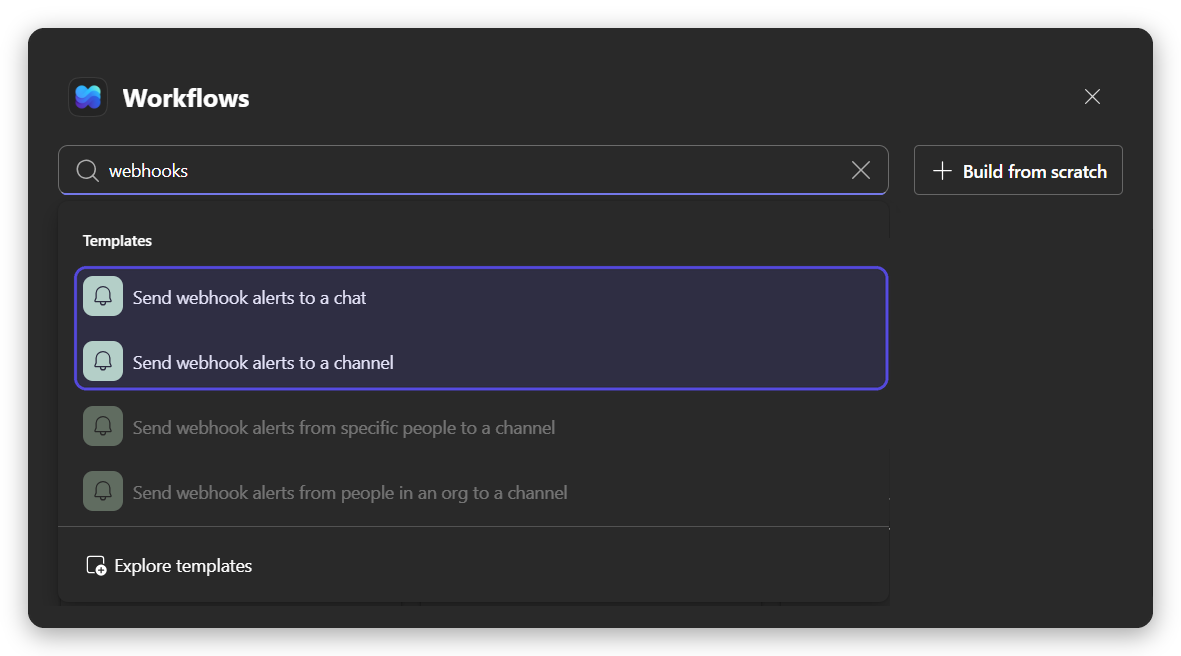
- Search for webhook.
- Pick Send webhook alerts to a channel or Send webhook alerts to a chat. Do not pick the "from specific people" or "from people in an org" variants: they accept only callers signed in to your Microsoft tenant, so BankConnector cannot post to them.
- Pick the team and channel, or the chat, then finish the setup.
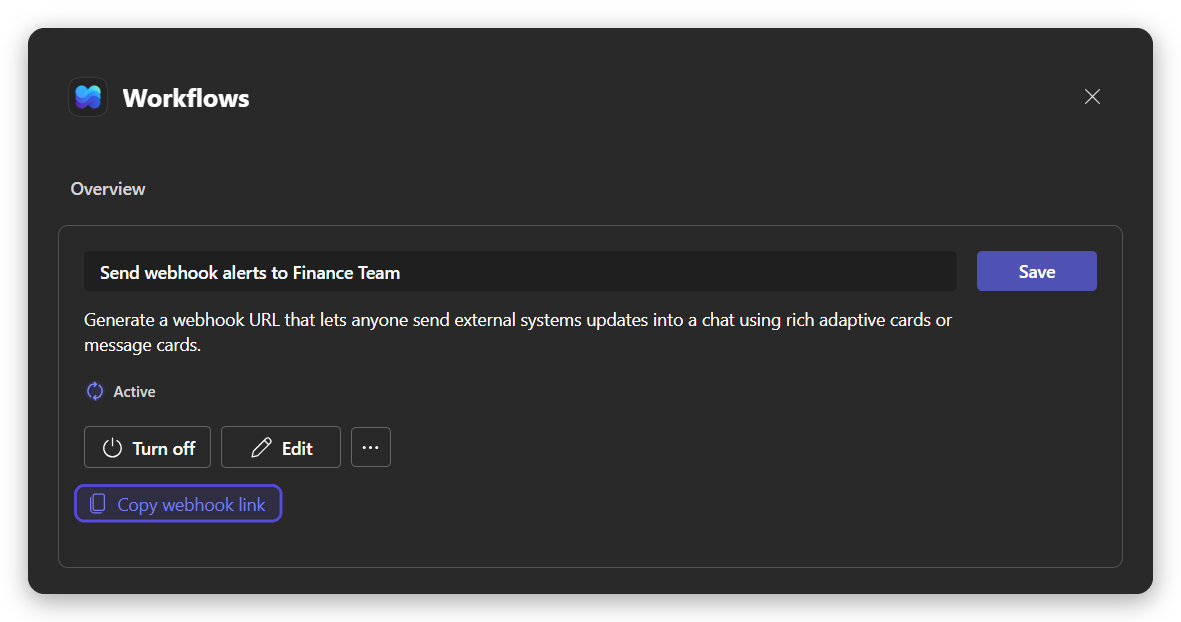
- On the finished workflow, choose Copy webhook link.
Slack
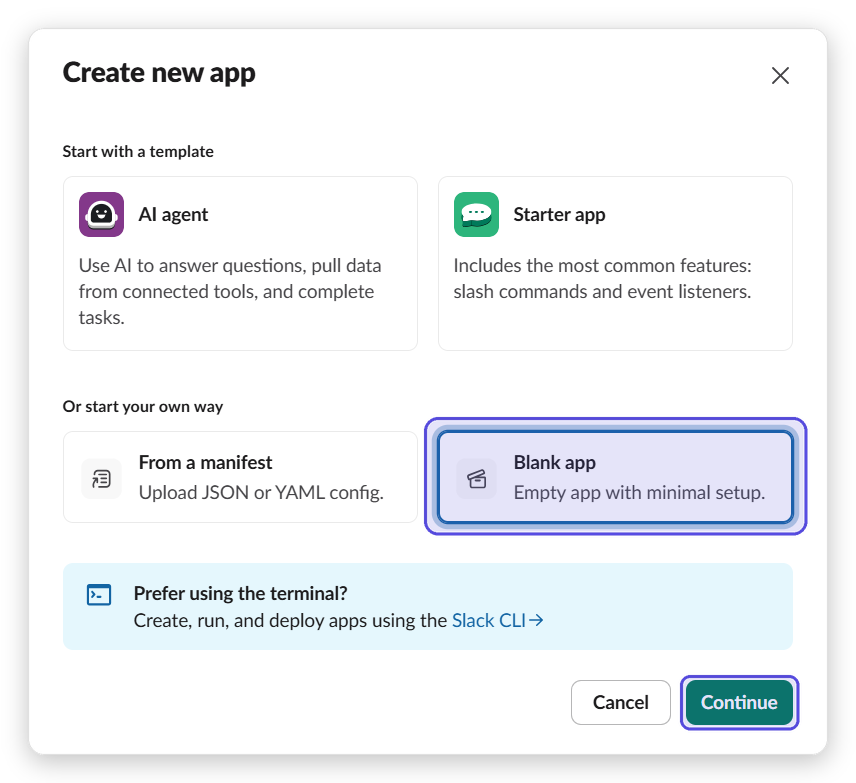
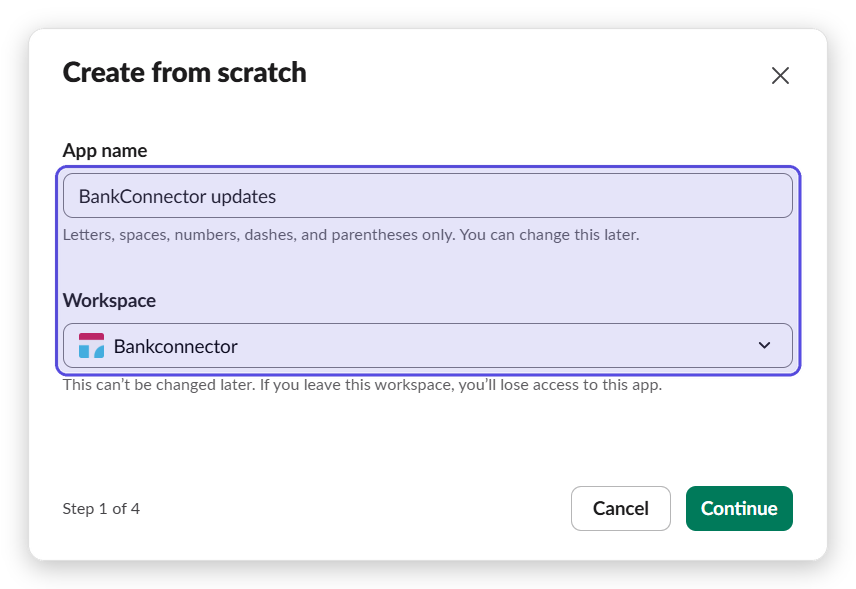
- Go to api.slack.com/apps, choose Create New App, then Blank app, then Continue.
- Name the app, for example "BankConnector updates", pick your workspace, and choose Continue.
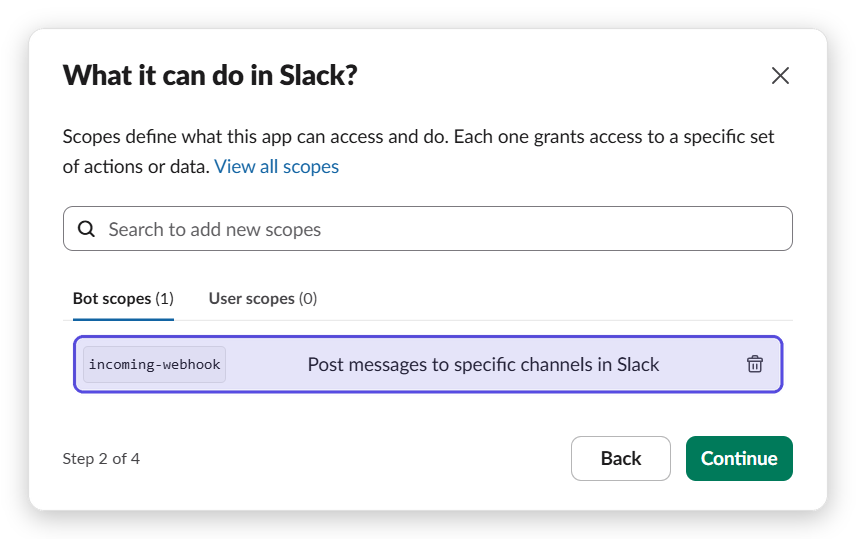
- On "What it can do in Slack?", check that the bot scope
incoming-webhook("Post messages to specific channels in Slack") is listed. If it is not, search for it and add it. Choose Continue.
- Leave the events step empty and choose Continue.
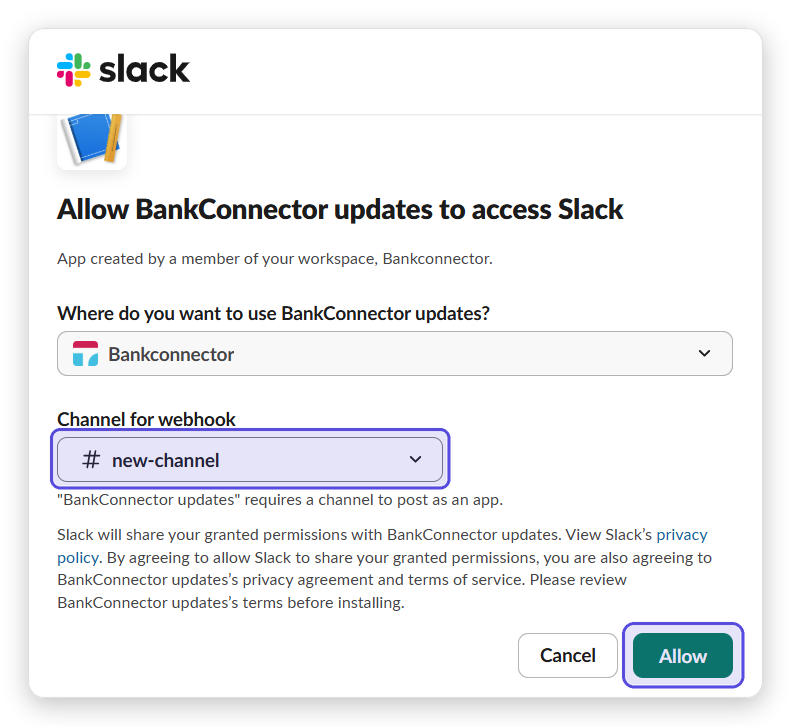
- On the last step choose Create and Install. Slack asks for the channel for webhook. Pick the channel and choose Allow.
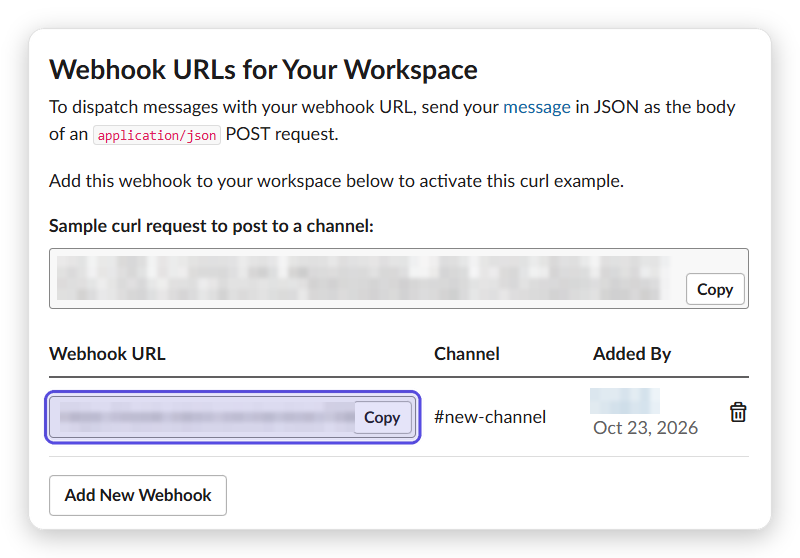
- When Slack says the app is ready, choose Go to App Settings (ignore the Slack CLI steps) and open Incoming Webhooks. It is already switched on. Under Webhook URLs for Your Workspace, choose Copy next to the
https://hooks.slack.com/services/…URL.